
Android applications have revolutionized how we interact with our devices, offering solutions for nearly every need. Downloading and installing APK files (Android application packages) is a popular method for accessing apps not available on the Google Play Store. However, at times, users encounter the frustrating “App not installed” error. If you’re seeking guidance on how to fix app not installed APK, you’re in the right place. This guide provides in-depth solutions to this common issue.
Understanding the Issue: Why Does “App Not Installed” Occur?
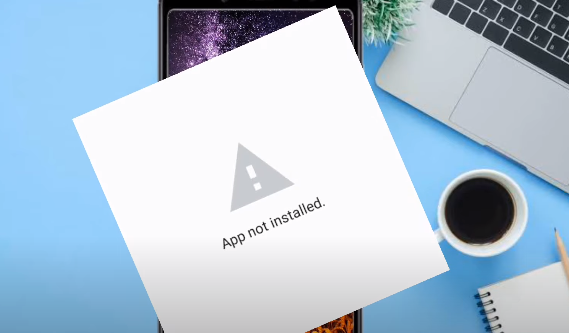
Before diving into the solutions, it’s vital to understand the root causes behind the “App not installed” error:
- Insufficient Storage Space: APKs require storage space, both for the file and the installation. Limited space might prevent installation.
- Corrupted APK File: A damaged or incomplete APK file can trigger the error.
- Security Restrictions: Android systems, by default, block installations from unknown sources to protect against malware.
- App Incompatibility: Sometimes, an APK might not be compatible with your Android version or device.
How to Fix App Not Installed APK: Effective Solutions
- Check Storage Space: Ensure you have enough storage. If running low, clear the cache, delete unwanted files, or uninstall seldom-used apps.
- Download APK from Reliable Sources: Always download APKs from trusted sources to avoid corrupted files. Check reviews and ensure the source’s authenticity.
- Enable Installations from Unknown Sources: Go to Settings > Security > and toggle on ‘Install from Unknown Sources’. Remember to toggle it off after installation to keep your device secure.
- Check APK Compatibility: Ensure the APK is suitable for your Android version. If not, search for an appropriate version of the app.
- Reboot Your Device: Sometimes, a simple reboot can fix minor glitches preventing installation.
- Use an Older APK Version: If a newer version doesn’t install, try an older version. Developers occasionally release versions with bugs that can be fixed in subsequent releases.
Alternative Installation Methods
If you’re still having trouble, consider alternative methods. Did you know Chromebooks also support APK installations? If you have one, explore how to install APK on a Chromebook for a seamless experience.
Conclusion
Navigating the world of APKs can be complex, but with the right guidance, it becomes manageable. We hope this guide on how to fix app not installed APK assists you in overcoming installation challenges. Always ensure to follow security practices, keeping your device safe while enjoying the vast world of Android applications.
Frequently Asked Questions (FAQs)
1. Why is my APK saying app not installed? The “App not installed” error can arise due to several reasons including insufficient storage space, corrupted APK files, security restrictions set by your Android system, or app incompatibility with your Android version or device.
2. How do I fix apps not installed when downloading APKs? To troubleshoot this issue, you can:
- Ensure sufficient storage space.
- Download the APK from trusted sources to avoid corrupted files.
- Enable installations from unknown sources via Settings > Security.
- Check the APK’s compatibility with your device or Android version.
- Restart your device.
- Use an older APK version if the newer one fails.
3. Why is my app not installing? Apart from the reasons related to APK files mentioned earlier, other factors can prevent app installation. These include issues with the Google Play Store, pending updates, and restricted data settings. Clearing the Play Store’s cache and data, updating your Android system, or checking data restrictions can sometimes resolve these issues.
4. How to force install APK on Android? Force installing an APK isn’t generally recommended as it can pose security risks or result in unstable app performance. However, if you still want to proceed, you can use third-party apps like APK Installer. After downloading such tools, you can browse the APK file and proceed with the installation. Always ensure you trust the APK’s source and the third-party installation tool.