
Steam stands as a paramount gaming platform, home to a myriad of games from indie gems to blockbuster masterpieces. For avid gamers, it has become a digital sanctuary, amassing games that cater to every conceivable taste and preference. As collections grow, managing and organizing one’s game library becomes crucial. It’s not just about aesthetics or ease of access; it’s about mastering the digital realm where games reside.
Within this extensive library management, a frequently encountered scenario is the act of hiding games. Be it to declutter, avoid potential distractions, or manage titles not currently of interest; the hide feature serves a purpose. Yet, as circumstances change, the desire to Unhide Games in Steam becomes relevant. Whether it’s nostalgia pulling back to a previously hidden title or a change in the gaming mood, the ability to unhide games ensures the library remains dynamic and tailored to evolving preferences. Dive with us as we explore the intricacies of bringing these concealed titles back to the forefront
Why Would You Hide Games on Steam?
Before we delve into the how-to, it’s essential to understand why one might hide games on Steam:
- Decluttering: If you’ve amassed a substantial collection, hiding games can help you keep your library tidy.
- Gifted Games: Sometimes, you receive games as gifts that you aren’t interested in playing immediately.
- Avoid Distractions: Maybe there’s a particularly addictive game you’re trying to avoid. Hiding it can help you resist the urge to play.
Step-by-Step Guide to Unhide Games on Steam
Now, onto the main event. Here’s a simple step-by-step guide to help you unhide those games:
- Launch Steam: Start by opening your Steam client. Make sure you’re logged in to the correct account.

Go to Your Library: At the top of the Steam client, click on “Library” to view your collection of games.
- Hidden Games Filter: On the left pane, where you see your list of games, scroll down to the bottom. Here, you will find a link titled “HIDDEN.” Click on this to see all your hidden games.
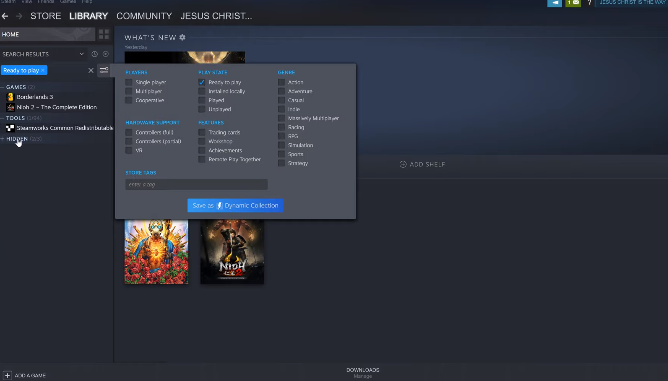
Unhide Games on Steam
- Select and Unhide: Once you’re viewing your hidden games, right-click on the game you want to unhide. From the dropdown menu, select “Manage” and then “Remove from Hidden.” Voila! Your game will return to your main library.
- Double-Check: To ensure that the game has been unhidden, go back to the main library list. You should see the game title back in its regular place.

Tips for Managing Your Steam Library
- Use Collections: Steam offers a ‘Shelves’ feature that lets you categorize and display games as you see fit. You can group games by genre, mood, or however you like.
- Favorites: If you play specific games frequently, you can mark them as favorites. This will place them at the top of your library for easy access.
- Search Function: Remember, Steam’s search function is pretty robust. If you ever lose sight of a game, just type its name into the search bar.
Conclusion
Unhide Games in Steam is a straightforward process, but it’s one of those tasks that can seem more complex than it is if you’ve never done it before. We hope this guide simplifies the process for you. Keep this handy for the next time you need to clean up or organize your Steam library, and happy gaming!
FAQs “How to Unhide Games in Steam”
Q: How do I see my hidden games on Steam?
A: To view hidden games on Steam, go to your library. On the left panel where your games are listed, scroll to the bottom. Click on “Hidden” to view all the games you’ve hidden.
Q: How do I unhide everything on Steam?
A: To unhide games on Steam:
- Go to your Library.
- Find the “Hidden” category on the left pane.
- Right-click on the game you wish to unhide.
- Select “Manage” from the dropdown menu, then click “Remove from Hidden”.
Repeat this process for each game you’d like to unhide. As of now, there’s no option to unhide all games at once.
Q: How do I unhide a game on Steam Deck?
A: The Steam Deck uses a similar interface to the Steam client. To unhide a game:
- Navigate to your Library on the Steam Deck.
- Locate the “Hidden” category.
- Tap on the game you want to unhide.
- Access the game’s settings or management options.
- Select the option to remove it from the “Hidden” category.
Q: How do I unhide a folder on Steam?
A: If you’ve created a collection or folder in Steam and hidden it:
- Go to your Library.
- In the “Collections” section on the left pane, locate and click on the “Hidden” tab.
- Find the folder/collection you’ve hidden.
- Right-click (or use the relevant management option) on it.
- Choose the option to remove it from the “Hidden” category or to make it visible again.