Introduction: Are you looking to reclaim valuable disk space on your computer or perhaps having trouble with the Epic Games Launcher? Whether you’re on Windows 10, Windows 11, Xbox, or a Mac, uninstalling the Epic Games Launcher can sometimes be a bit tricky. In this step-by-step guide, we’ll walk you through the process of uninstalling Epic Games Launcher smoothly. We’ll also address common issues like it saying “currently running” or refusing to uninstall. Let’s dive into the world of uninstalling Epic Games Launcher and regain control of your system.
Uninstall Epic Games Launcher on Windows 10:
- Open Control Panel: To start the uninstallation process, click on the Windows Start button, search for “Control Panel,” and select it.
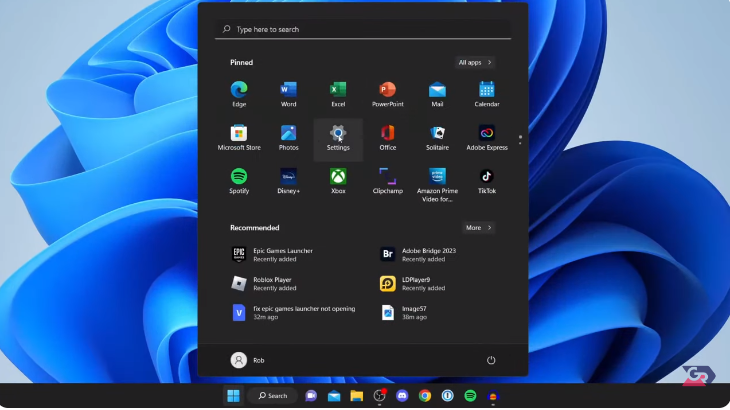
- Access “Uninstall a Program”: In the Control Panel, navigate to “Programs” and then click on “Uninstall a program.”
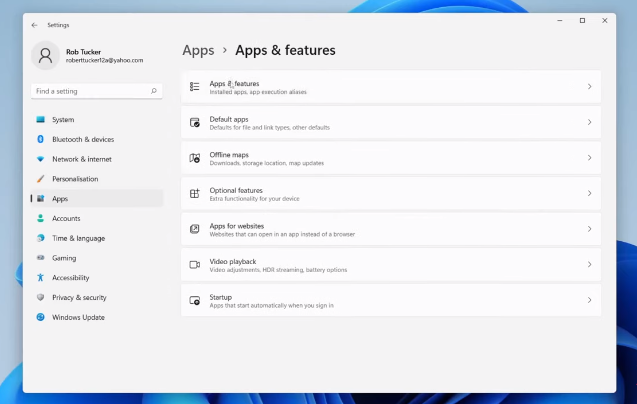
- Locate Epic Games Launcher: Look through the list of installed programs and find “Epic Games Launcher.”
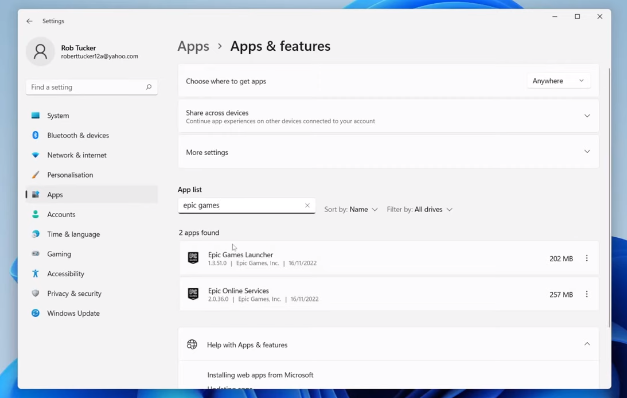
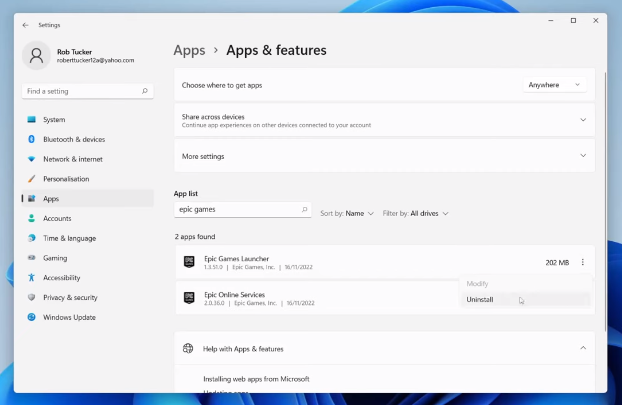
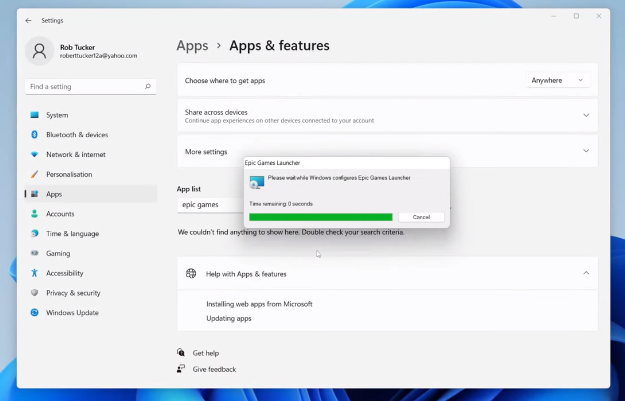
- Begin Uninstallation: Select “Epic Games Launcher” and click on “Uninstall” at the top of the window. Follow the on-screen instructions to complete the process.
- Restart Your PC: After uninstallation is complete, it’s a good practice to restart your computer to ensure a clean removal.
How to Uninstall Epic Games Launcher When It Says “Currently Running”:
At times, Epic Games Launcher may stubbornly claim to be running even when it’s not visibly open. Here’s how to handle this situation:
- Open Task Manager: Press
Ctrl + Shift + Escto launch Task Manager. - End Epic Games Launcher Processes: In Task Manager, search for any Epic Games Launcher-related processes, such as “EpicGamesLauncher.exe” or “EpicWebHelper.exe.” Right-click on them and choose “End Task.”
- Try Uninstalling Again: After ending these processes, attempt to uninstall Epic Games Launcher following the previous Windows 10 steps.
Uninstall Epic Games Launcher on Xbox:
Uninstalling Epic Games Launcher on Xbox is a breeze:
- Go to “My games & apps”: From your Xbox Home screen, navigate to “My games & apps.”
- Find Epic Games Launcher: Scroll through the list of installed games and apps to locate “Epic Games Launcher.”
- Uninstall: Highlight “Epic Games Launcher,” press the
Menubutton on your controller, and choose “Uninstall.”
Uninstall Epic Games Launcher on Mac:
Removing Epic Games Launcher from a Mac is straightforward:
- Open Applications Folder: Start by opening your “Applications” folder.
- Locate Epic Games Launcher: Find the Epic Games Launcher application and drag it to the Trash icon in your Dock.
- Empty the Trash: Right-click the Trash icon and select “Empty Trash.”
Can’t Uninstall Epic Games Launcher:
If you encounter difficulties uninstalling Epic Games Launcher, don’t worry; there’s a solution:
- Download the Repair Tool: Visit the Epic Games website and download the “Epic Games Launcher Installer Repair Tool.”
- Run the Tool: Execute the tool and follow the on-screen instructions. It will assist in repairing the installation or uninstalling the launcher.
How to Close Epic Games Launcher:
Closing Epic Games Launcher is a simple task:
- System Tray: Look for the Epic Games Launcher icon in the system tray, located in the bottom-right corner of your screen.
- Right-Click and Exit: Right-click the icon and select “Exit” or “Quit” to close the launcher.
Uninstall Epic Games Launcher on Windows 11:
The process for uninstalling Epic Games Launcher on Windows 11 is quite similar to that of Windows 10. You can follow the Windows 10 steps mentioned earlier in this article.
What Happens If I Uninstall Epic Games Launcher:
Uninstalling Epic Games Launcher primarily removes the launcher application from your system. However, your purchased games, progress, and game saves should remain intact. They are typically associated with your Epic Games account, not the launcher itself. You can reinstall the launcher at any time and access your purchased games by logging in with your account credentials.
Follow This video forUninstall Epic Games Launcher
In conclusion, this guide has provided you with the necessary steps to uninstall Epic Games Launcher on various platforms, including Windows 10, Windows 11, Mac, and Xbox. We’ve also addressed common issues and outlined what happens when you uninstall the launcher. By following these steps, you can effectively manage your gaming software and free up valuable storage space on your device. Remember that maintaining a clutter-free system can lead to improved performance and a smoother computing experience.
Now, take control of your gaming setup, uninstall Epic Games Launcher hassle-free, and enjoy more storage space and a streamlined gaming experience.
Here are four frequently asked questions (FAQs) related to uninstalling the Epic Games Launcher:
1. What should I do if I can’t find Epic Games Launcher in the “Uninstall a program” list on Windows?
If you can’t locate Epic Games Launcher in the “Uninstall a program” list, it’s possible that the application wasn’t installed via the traditional method. In such cases, try using the Epic Games Launcher Installer Repair Tool, available on the Epic Games website. This tool can help repair or uninstall the launcher.
2. Will uninstalling Epic Games Launcher delete my game saves and progress?
Uninstalling Epic Games Launcher itself does not delete your game saves or progress, as these are typically stored in separate directories or cloud storage. However, some games may store save files in the Epic Games Launcher folder. Before uninstalling, check the individual game settings or backup your game saves if you’re concerned about losing progress.
3. Can I reinstall Epic Games Launcher after uninstalling it?
Yes, you can reinstall Epic Games Launcher at any time if you decide to use it again. Visit the Epic Games website, download the installer, and follow the installation instructions. Your previously installed games should still be accessible after reinstalling the launcher.
4. What happens to my purchased games if I uninstall Epic Games Launcher?
Uninstalling the Epic Games Launcher does not affect your purchased games. Your game licenses and purchases are associated with your Epic Games account, not the launcher itself. Once you reinstall the launcher or install it on a different computer, you can log in to your account and access your purchased games.
These FAQs should help address common concerns and doubts that users may have when uninstalling Epic Games Launcher.