Where are APK files stored on Android devices? This question often pops up when users want to dig deeper into their Android file system, especially after they’ve downloaded a variety of apps. It’s essential knowledge for those who wish to back up their APK files, move them, or troubleshoot certain issues. In this article, we’ll delve into the specifics of where these APK files are stored on various Android versions and how to access them.
A Primer on APK Files Stored on Android Devices:
Before diving into the specifics of “Where are APK files stored on Android devices?”, it’s crucial to understand what an APK file is. APK stands for Android Package Kit, which is the file format used for distributing and installing applications on Android devices. Think of them as the executables for Android. When you download an app from the Play Store, you’re essentially downloading an APK file, which the system then installs. For developers and power users, knowing the location of these APK files is pivotal.
General Location Across Devices:
Generally, APK files downloaded from the Google Play Store are stored in the directory /data/app. This folder contains all the app data, and for each application, there’s a separate directory which often includes its name. However, accessing this folder directly requires root permissions due to Android’s security constraints. That’s also the reason why when you ask, “Where are APK files stored on Android devices Samsung?”, you’ll find the location is pretty much the same, but accessing it might differ based on the manufacturer’s software layers.
Android 11, 12, and 13:
With each Android update, slight changes might occur in the way the system handles files. So, where are APK files stored on Android 11? What about Android 12 and 13? For the most part, the storage location remains consistent in /data/app. However, with the introduction of Scoped Storage in Android 11, accessing these files becomes more restrictive for apps, promoting user privacy. Hence, while the location remains constant, the method to access them might vary. Always ensure you have proper permissions or a rooted device when trying to access system directories.
How to Find and Open APK Files Stored on Android Devices:
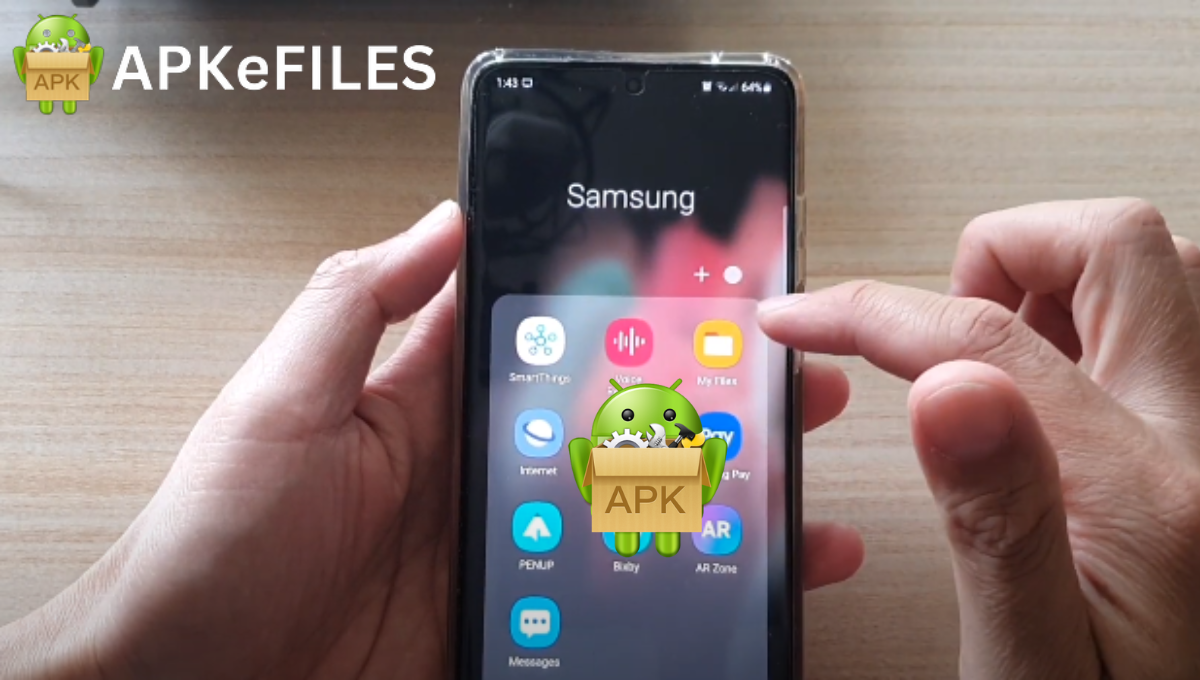
Now that you’re familiar with “Where are APK files stored on Android devices?”, the next logical step is how to find an APK file of an installed app and open it. Various file manager apps are available on the Play Store, which can help you navigate your device’s file system. For the tech-savvy, ADB (Android Debug Bridge) is a robust tool that allows you to pull APK files from your device onto your computer. Once you’ve located the APK, you can share, back it up, or even install it on other devices.
Uninstalling APK files (Android Package files) from an Android device
Method 1: Via the Settings App
- Open the Settings app on your Android device.
- Navigate to Apps or Applications or App Manager, depending on the version of Android and the device manufacturer.
- A list of all the installed applications will appear.
- Scroll down and find the app you want to uninstall.
- Tap on the app.
- Tap the Uninstall button. Confirm any prompt that asks you if you’re sure you want to uninstall the app.
Method 2: From the App Drawer
- Open the App Drawer (where all your apps are listed).
- Locate the app you want to uninstall.
- Press and hold on the app icon.
- Some options will appear. Drag the app icon to the Uninstall option (usually represented with a trash bin icon) at the top or bottom of the screen.
- Confirm the uninstallation.
Method 3: Via Google Play Store
- Open the Google Play Store app.
- Tap on the three horizontal lines (hamburger menu) at the top-left or tap on your profile icon depending on your version.
- Select My apps & games.
- Go to the Installed tab.
- Scroll to find the app you want to uninstall.
- Tap on the app.
- Tap Uninstall and confirm.
Method 4: Using Third-party Apps
There are several third-party apps available on the Play Store that provide more powerful app management tools. Apps like “App Master” or “Easy Uninstaller” can batch uninstall applications, show apps by storage size, or even help remove bloatware (with root). If you’re frequently installing and uninstalling apps, these tools might be helpful.
Note: Always be cautious while granting permissions to third-party apps, especially if they ask for root access.
Method 5: ADB (Advanced Users)
If you’re familiar with the Android Debug Bridge (ADB) and have it set up on your computer, you can use it to uninstall apps:
- Connect your Android device to your computer.
- Open a terminal or command prompt.
- Ensure your device is recognized with the command:
adb devices - Use the following command to uninstall an app:
adb uninstall <package-name>
Replace <package-name> with the name of the package you want to uninstall (e.g., com.facebook.katana for the Facebook app).
Note: ADB is a powerful tool, and you should be cautious while using it. Uninstalling system apps or making modifications with ADB can potentially harm your device if done incorrectly.
Regardless of the method you choose, remember that uninstalling an app will also remove all of its data from your device. If you want to keep the data, consider clearing the app’s cache or data from the Settings app instead of uninstalling it.
Linking to Extended Resources:
If you’re curious about APKs beyond Android and wish to explore how they function on other platforms, check out our detailed guide on how to install APK on iOS. It provides an in-depth look into the world of APKs outside the Android ecosystem.
Conclusion:
Understanding where APK files are stored on Android devices is invaluable for Android enthusiasts, developers, or even the average user trying to manage their app backups. Whether you’re on a Samsung device or wondering about the storage specifics on Android 11, 12, or 13, the core location remains relatively consistent. However, always be cautious when diving deep into the Android file system and ensure you’re not compromising your device’s security or functionality.
FAQs: APK Files Stored on Android Devices
1. How Do I Open An APK File? To open an APK file on an Android device, first, ensure that you’ve enabled installations from unknown sources (typically found in the ‘Security’ or ‘Privacy’ settings). Once done, navigate to the location of the APK file using a file manager, tap on it, and choose ‘Install’.
2. Where Is APK Located? APK files, when downloaded, are commonly stored in the /sdcard/download/ directory. However, depending on the app’s installation method or your device’s make and model, they can also reside in other directories like /sdcard/android/obb/ or /data/local/.
3. How Can I Convert APK To App? Technically, an APK is already an app format for Android. When you “install” an APK, you’re essentially unpacking and installing the app on your device. So, there’s no conversion necessary. If you mean converting it for another platform, like iOS, it requires a completely different development process.
4. What Is The Difference Between An App And An APK? An ‘app’ is a software application designed to perform specific tasks. An APK (Android Package Kit) is the package file format used by Android for the distribution and installation of apps. In essence, APK is the format while the app is the actual software.
5. Where Are Unknown Sources In Settings? To locate ‘Unknown Sources’ on an Android device, go to the ‘Settings’ app. From there, based on your device and its version, you might find it directly under ‘Security’ or ‘Privacy’. On newer Android versions, it’s more app-specific, and you’d grant permission when trying to install an APK from a particular source. Always proceed with caution when enabling installations from unknown sources.