
In the ever-evolving world of gaming, nostalgia often beckons us back to the classics. Many of these beloved classics happen to be 32-bit games, and if you’re a Mac user you might be wondering how to relive those memorable moments from the past. In this guide, we’ll explore how to play 32-bit games on Mac taking you through the steps and tools needed to rekindle the magic of retro gaming. So, let’s dive in and embark on a journey down memory lane!
Understanding 32-Bit Games on Mac Compatibility
Before we delve into the how-to, let’s clarify what 32-bit games are and why they pose a challenge for Mac users.
What are 32-bit Games?
32-bit games refer to video games designed for 32-bit processors. These games were prevalent in the late ’90s and early 2000s, representing a significant era in gaming history. Titles like “Warcraft III,” “Age of Empires II,” and “RollerCoaster Tycoon” are just a few examples of iconic 32-bit games that still hold a special place in gamers’ hearts.
Why the Challenge for Mac Users?
The challenge with playing 32-bit games on a Mac arises from Apple’s decision to transition to 64-bit architecture, starting with macOS Catalina (version 10.15). With this transition, macOS dropped support for 32-bit applications, including games. Therefore, if you’re running a newer version of macOS, like Catalina or later, you can’t run 32-bit games directly.
However, there are workarounds and solutions that allow Mac users to enjoy these classics once again.
Method 1: Use a Virtual Machine
One way to play 32-bit games on your Mac is to create a virtual machine (VM) running an older version of macOS that supports 32-bit applications. Here’s how:
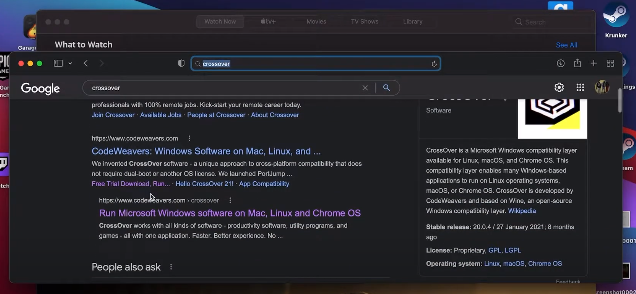
- Choose a Virtualization Software: Select a virtualization software like Parallels Desktop or VMware Fusion. Both offer free trials and are compatible with Mac.
- Install the Virtual Machine: Create a virtual machine within the software and install an older version of macOS that supports 32-bit games. macOS Mojave (10.14) is a popular choice.
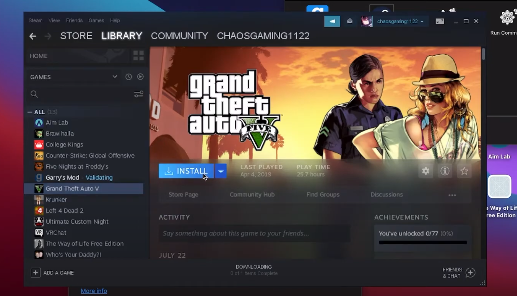
- Install Your Game: Once the virtual machine is set up, install your 32-bit game within the virtual environment.
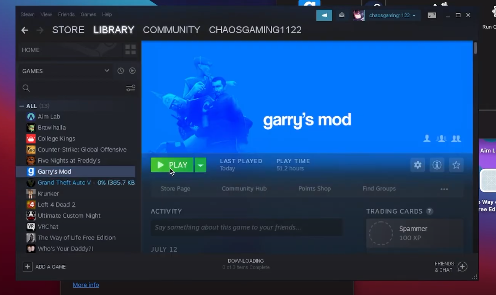
- Play Your Game: Launch the virtual machine, and you should be able to play your 32-bit game seamlessly.


Method 2: Use Wine
Wine is a compatibility layer that allows you to run Windows applications (including some 32-bit games) on macOS without the need for a virtual machine. Here’s how:
- Install Wine: Start by installing Wine on your Mac. You can do this through software like WineBottler or PlayOnMac, which simplify the Wine installation process.
- Configure Wine: Configure Wine to create a “bottle” for your game. This bottle acts as a virtual environment for the game.
- Install Your Game: Use Wine to install your 32-bit game within the bottle you created.
- Play Your Game: Launch the game through Wine, and it should run on your Mac.
Method 3: Use an Emulator
Emulators are another option to play 32-bit games on your Mac. Emulators recreate the hardware and software of the original gaming systems, allowing you to run old games. Some popular emulators for Mac include OpenEmu and RetroArch.
- Install an Emulator: Download and install an emulator of your choice.
- Add ROMs: Locate and add ROMs (game files) for the 32-bit games you want to play. These ROMs are typically available on various gaming websites.
- Configure Controls: Set up your controls according to your preferences.
- Play Your Game: Launch the emulator and select the game you want to play. Enjoy the nostalgia!
Conclusion
While macOS has moved towards 64-bit compatibility, it doesn’t mean you have to say goodbye to your favorite 32-bit games. By using virtual machines, Wine, or emulators, you can relive the classics and enjoy hours of gaming nostalgia on your Mac. So, dust off those old game CDs or download ROMs, follow the steps outlined in this guide, and get ready to embark on a retro gaming adventure. Now you know how to play 32-bit games on your Mac with ease. Happy gaming!
1. Why can’t I play 32-bit games on my Mac?
You can’t play 32-bit games on newer versions of macOS (Catalina and later) because Apple transitioned to 64-bit architecture, which dropped support for 32-bit applications, including games. This decision was made to enhance system performance, security, and compatibility with modern software. To play 32-bit games on a newer Mac, you’ll need to use workarounds like virtual machines, Wine, or emulators.
2. What version of Mac can run 32-bit games?
Mac versions before macOS Catalina (version 10.15) could run 32-bit games natively. macOS Mojave (version 10.14) is a popular choice for running 32-bit games. However, Apple’s shift to 64-bit architecture in Catalina and later versions means that you’ll need to employ alternative methods like virtual machines or emulators to play 32-bit games on these newer Macs.
3. How do I play 32-bit games on Mac with Parallels?
To play 32-bit games on a Mac using Parallels Desktop, follow these steps:
- Choose Parallels Desktop or a similar virtualization software.
- Create a virtual machine (VM) within the software and install an older macOS version like Mojave (10.14) that supports 32-bit games.
- Install your desired 32-bit game within the virtual machine.
- Launch the virtual machine, and you’ll be able to play your 32-bit game seamlessly within the virtual environment.
This method allows you to run 32-bit games on your Mac without needing to downgrade your primary macOS.
4. Can you game on 32-bit?
Yes, you can still play 32-bit games on compatible systems. While 32-bit games may not take advantage of the full capabilities of modern hardware, they offer a nostalgic gaming experience and can be enjoyable for those who appreciate classic titles. You can use methods like virtual machines, Wine, or emulators to run 32-bit games on your computer, allowing you to enjoy retro gaming on your terms.